

Microsoft Outlook search Issue? Resolved!
Here Are Some solutions for most common Microsoft outlook/exchange search problems, So First we will start with some basic steps to make sure that our basic setting are correct. If your Microsoft Outlook search is not working properly or emails are not being searched, so follow these troubleshooting steps to fix it:
1. Check Your Internet connection
Sometime Internet connection or slow internet effect connectivity issue between Microsoft server and application.
2. Run the Windows Search Troubleshooter
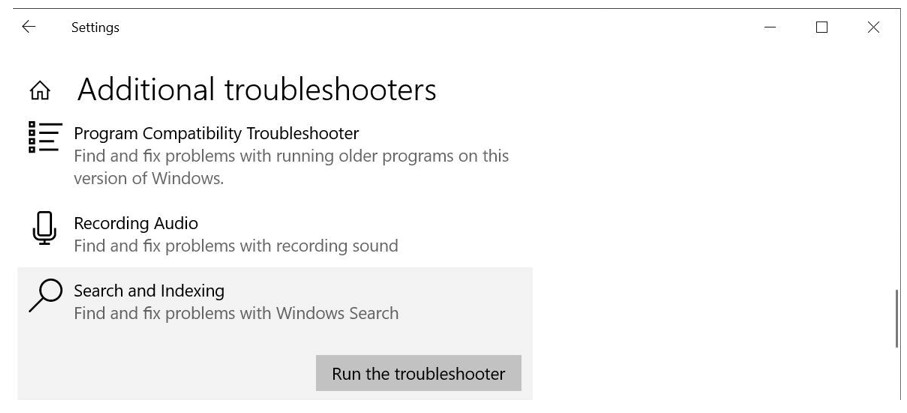
For Windows 10:
- You will get this setting here: Click on Start (Windows Icon in Left corner) > Settings > Update & Security
- Now click Troubleshoot then go to Additional troubleshooters, then select the Search and indexing option, and Run the troubleshooter.
then check the box Outlook search doesn’t return results followed by Next.
Let the troubleshooter run and complete its fixes, then restart your system.
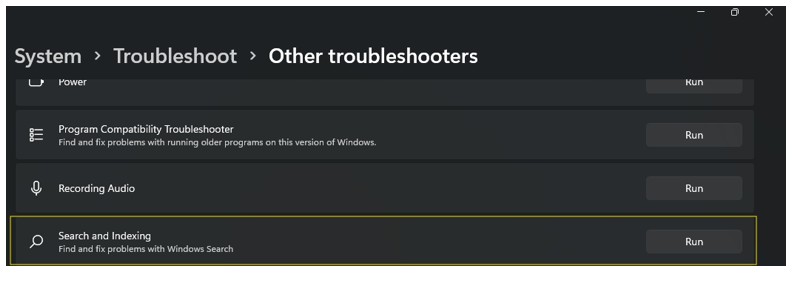
For Windows 11:
- You will get this setting here: Click on Start (Windows Icon in Center) > Settings > System
- Now click Troubleshoot then go to Additional troubleshooters, then select the Search and indexing option, and Run the troubleshooter.
- Then, check the box Outlook search doesn’t return results followed by Next.
For more article about tech check – https://irsight.com/
3. Rebuild the Microsoft Outlook Index:
Two ways of fixing this. If Outlook indexing stops working, it cannot search and list your emails, this is affecting Outlook search.
1: Use Control Panel (Programs and Features ) To reconfigure the Outlook index when Outlook search not work:
1. Click Window key + R then type Control.
2. Then You will get this options Programs > Programs & Features.
3. After that Search and select Microsoft Office (any version).
4. Select and then right click on mouse and select change option. Then select repair option to repair outook.
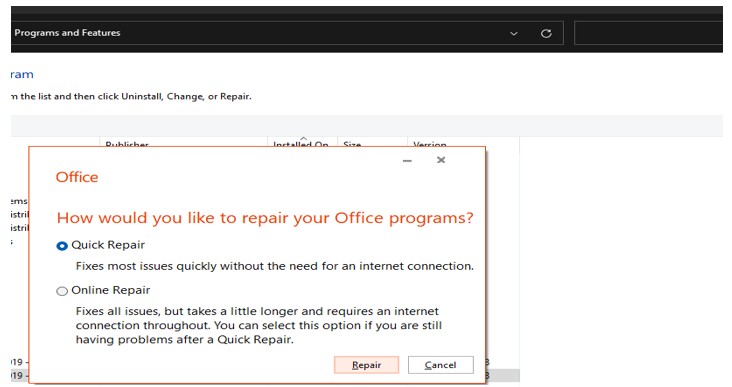
2: Outlook Index Repair Option (Inbuilt Outlook Option in microsoft outlook)
1. Open your Outlook, Search for File option then select File > Options > Search Now, select Indexing, then click on advance option.
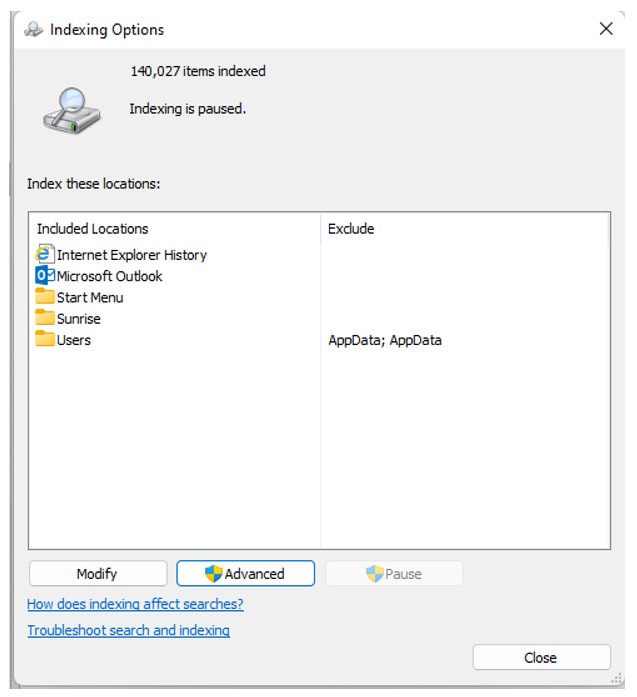
2. You will found Rebuild option click, and click apply. This will take few moment.
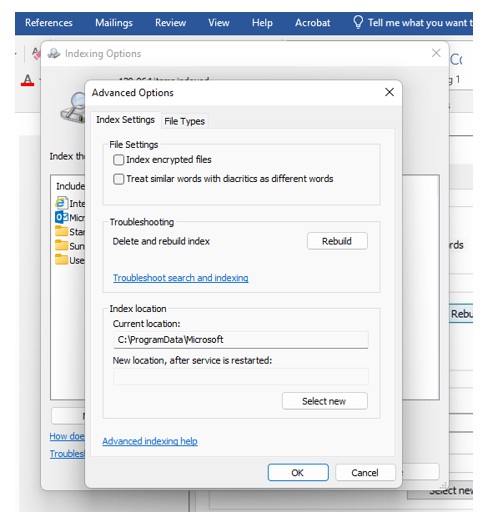
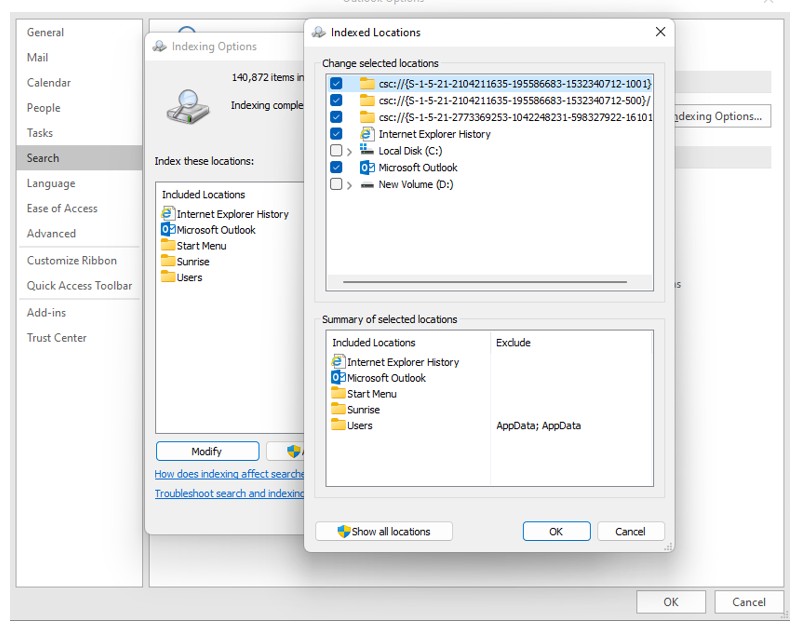
3. Indexing Option box tick check – if Outlook search still not working, make sure that Outlook is on the list of indexing location.
Go to file in outlook File > Options > Search > Indexing Options then select Modify from the Indexing Options page. Check for Microsoft outlook is checked then apply.
4. Outlook Search issue fix in Registry – Press Windows Key + R to open Run search, then type regedit enter to open the Registry Editor.
Search for this location HKEY_LOCAL_MACHINE\SOFTWARE\Policies\Microsoft\Windows\Windows Search
then assign value 0.
Now restart your system.
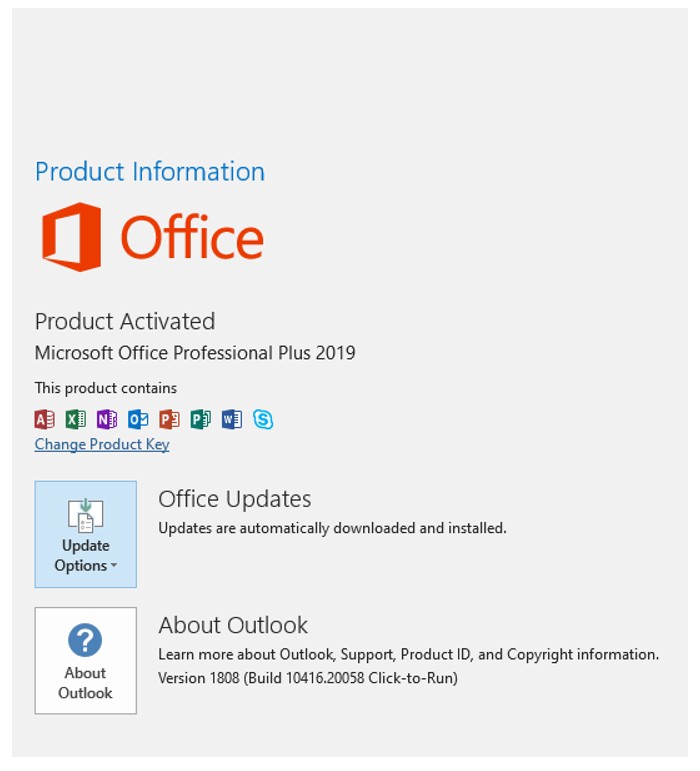
5. Update Microsoft Office –
In Outlook go to File > Office Account you will get update option there then to check for office update.
6. Outlook Personal Folder File (.PST)-
Outlook search is to repair your Outlook personal folder file (.PST) using the Inbox Repair. Outlook search may have issues if your Outlook personal folder file is corrupt, Then first you need to find the repair tool. Its location is dependent on your Outlook version. You’re looking for scanpst.exe in one of the following locations:
For Office Outlook 2010, 2013, 2016, 2019, and users of newer versions find their personal folder PST. file here:
C:\Users\RMA(your name)\AppData\Local\Microsoft\Outlook
Then right-click scanpst.exe and select Run as administrator. Click on browse then copy and paste your personal folder file location into the address box bar. Select account, after that click Open, This will take few minutes.
7. Group Policy Setting for Indexing-
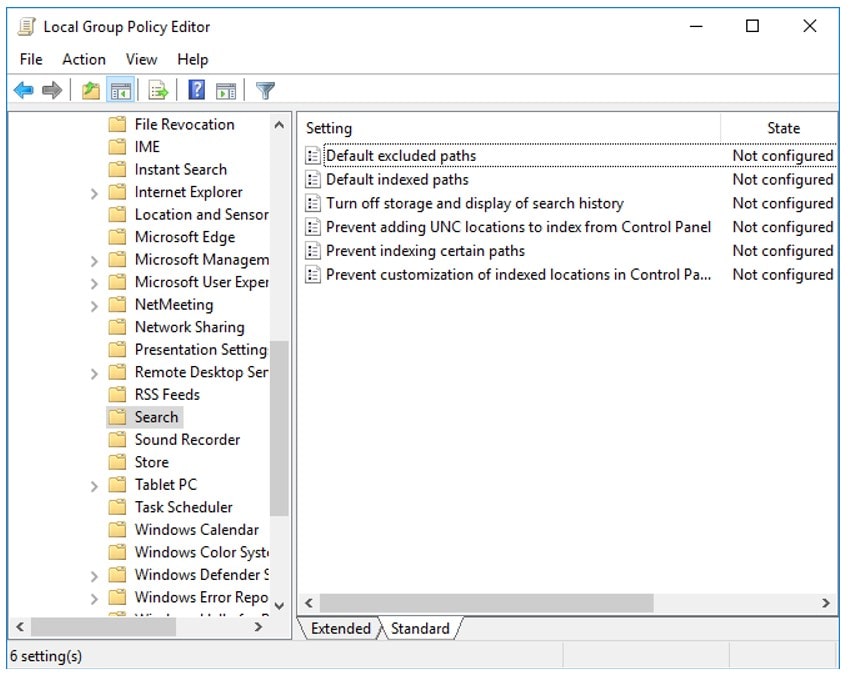
Type gpedit in the start menu search bar, then press enter.
Now go to User Configuration > Administrative Templates > Search. Check Default excluded paths and Prevent indexing certain paths for Microsoft Outlook.
8. Reinstall Microsoft Outlook
This is the last option after all tries, make sure that after all this you are installing latest version of Microsoft office.
Overall About Outlook
Microsoft Outlook’s search feature is important for quickly finding emails, contacts, calendar events, and other items. However, sometimes users face issues where search doesn’t work as expected. Understanding the common reasons for these problems and how to fix them can help improve the search experience.
Depend on the your email if you have exchange account it is configured on exchange server some time it will take some time to take data for the server and visible on our outlook depend on the internet connection.
If you face this issue in your archived file also then you can follow all the steps that we post in our article.
Overall solution for this search issue is indexing. Windows Search index looks for content in locations such as your home folder, the Start menu, your email client and contacts list. This enables Windows Search to quickly find the items you are likely to look for, such as messages, people, documents and media files. Because the Search Indexer has the ability to index file properties, you can search for text within documents and messages and Windows Search will find the associated files. When you use Windows Search, Windows checks the index for the requested content before searching the entire hard drive. This enables the search to be completed almost instantly in most cases.
We are ending our article here with some Solutions this solutions are tried and tested anyone can apply for there own uses.
